
Introduction
Remote control technology for tablets is revolutionizing how we interact with these devices. From managing professional tasks to enhancing personal entertainment, mastering tablet remote control features empowers users to operate with greater ease and efficiency. This comprehensive guide will cover essential aspects of remote access, guiding you through setup, app selection, security measures, and troubleshooting tips.
Understanding the Remote Control Capabilities of Tablets
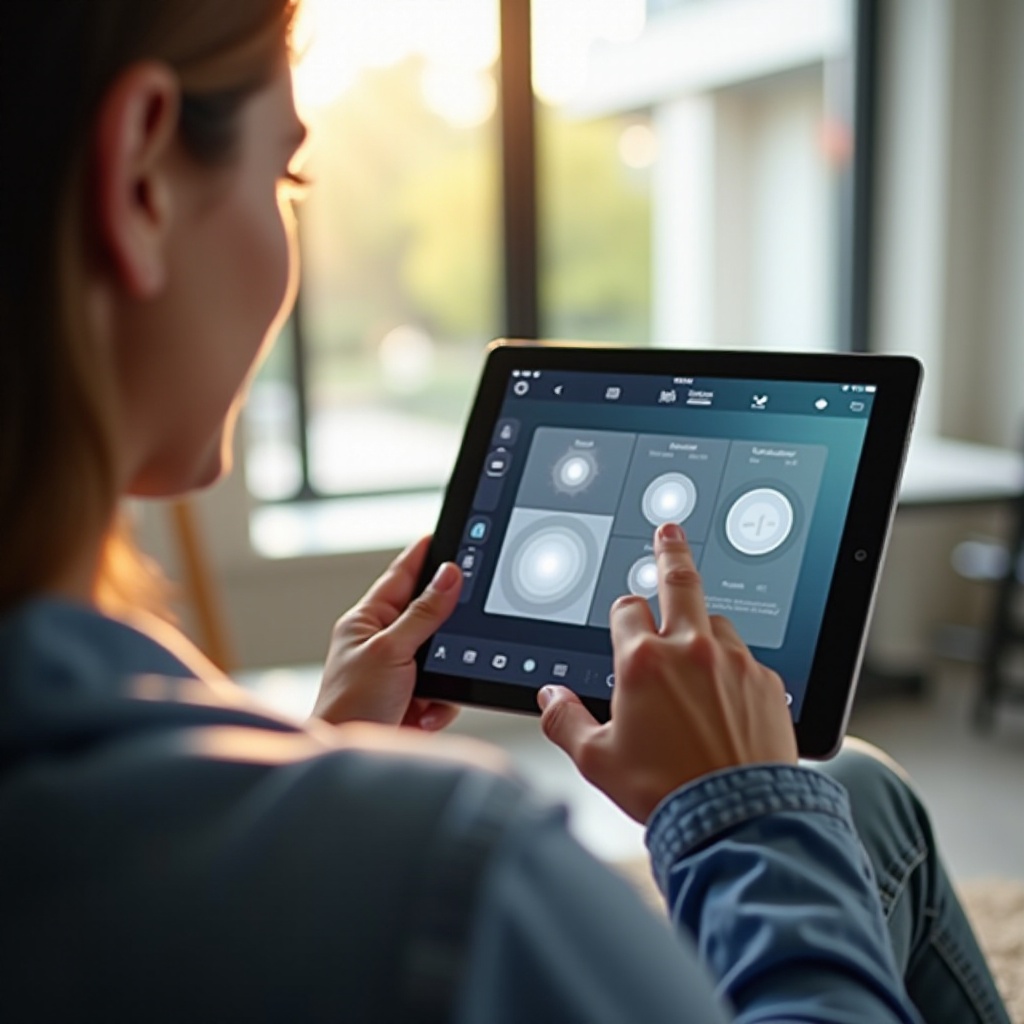
Remote control capabilities allow users to operate tablets from anywhere, transforming these devices into powerful hubs for managing various tasks. Whether it involves office tasks, family entertainment, or connecting smart devices at home, understanding these capabilities unlocks a world of opportunity.
Embracing remote control features can enhance how you use your tablet. This ability extends the versatility of your device, making it essential for both personal and professional environments.
Setting Up Remote Access on Your Tablet
To leverage the full potential of remote access, you need to select the right tools and configure your device properly. Here’s a step-by-step guide on setting up remote access:
- Choosing the Right Tools and Software:
- Evaluate software compatibility with your tablet’s OS.
- Prioritize security features within the app.
-
Consider popular choices like TeamViewer, AnyDesk, and Splashtop.
-
Step-by-Step Setup Guide:
- Download and install your chosen software.
- Configure remote settings, adjusting permissions as needed.
- Test your setup by connecting from another device.
- Fine-tune your settings for optimal security and performance.
Once properly set up, you’ll find remote operations streamlined and hassle-free.
Top Apps for Remote Control of Tablets
Numerous apps enhance the remote control experience, each catering to different needs. Here are some leading options:
- TeamViewer: Known for its user-friendly interface and robust cross-platform features.
- AnyDesk: Offers swift, reliable connections with minimal latency.
- Splashtop: Popular for ease of use and strong security measures.
Choosing the right app depends on your specific requirements—whether you prioritize simplicity, speed, or advanced security protocols. The right choice maximizes your tablet’s potential, enhancing daily tasks from remote locations.
Productivity Boost: Using Tablets for Remote Presentations and Meetings
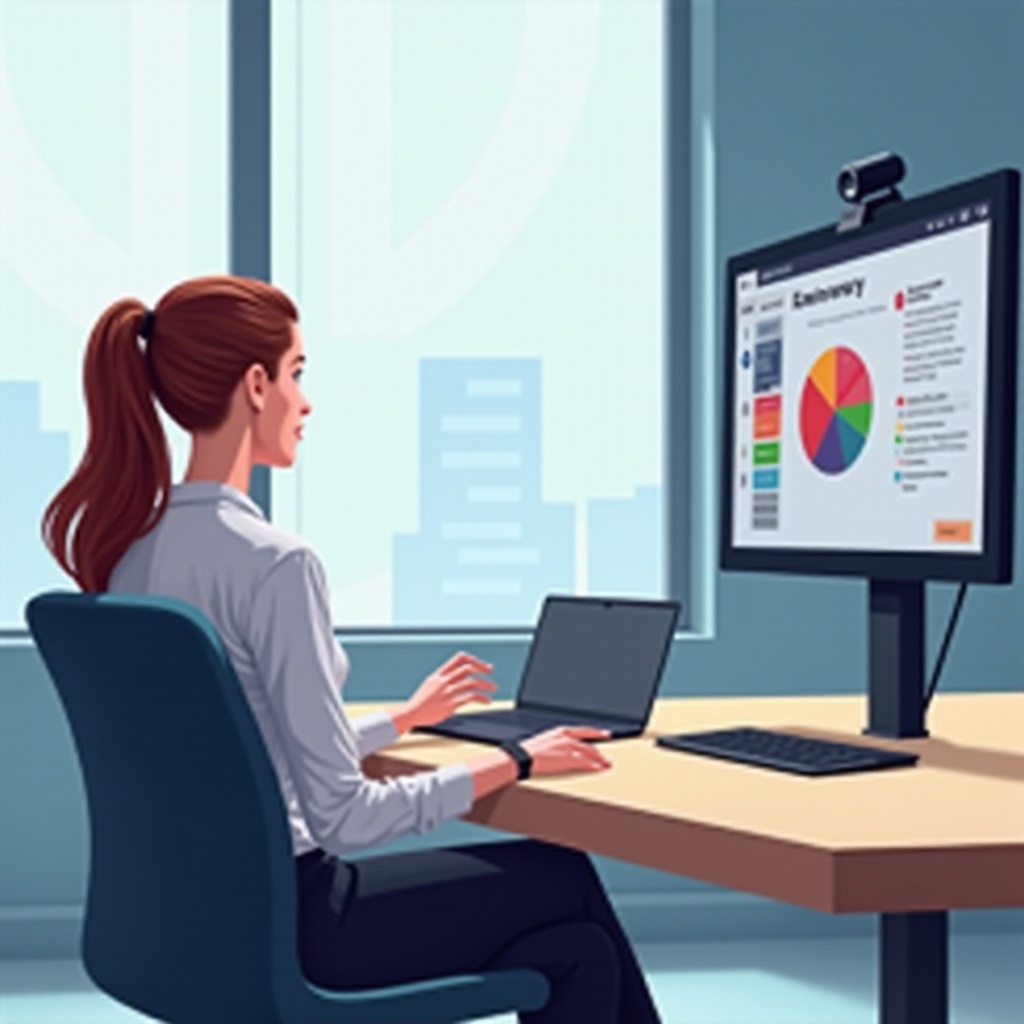
Remote control functionalities on tablets are transforming professional environments, bringing convenience and efficiency to presentations and meetings.
- Tips for Seamless Presentations:
- Ensure all materials are preloaded on your device.
- Use presentation apps that support remote features, such as Microsoft PowerPoint.
-
Conduct practice runs for smooth delivery.
-
Enhancing Virtual Meetings:
- Select video conferencing tools optimized for tablet use.
- Utilize available screen-sharing features.
- Maintain stable internet connectivity to prevent disruptions.
These methods make your tablet a valuable asset for professional interactions, allowing seamless collaboration and engaging presentations remotely.
Security Considerations for Remote Tablet Control
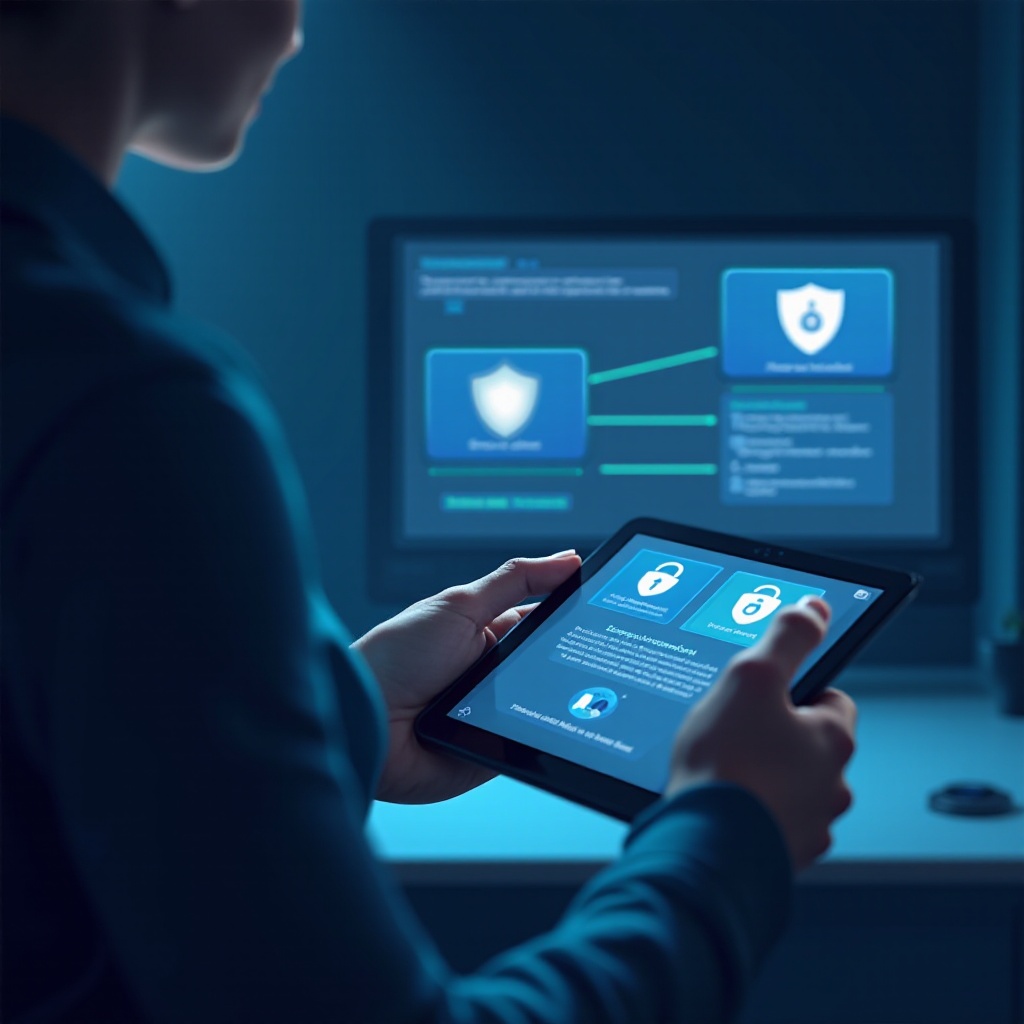
Security is paramount when utilizing remote control features on your tablet. Here are vital strategies to safeguard your data:
- Use complex, unique passwords and update them regularly.
- Enable two-factor authentication for additional security layers.
- Keep your operating system and apps up to date.
- Be wary of remote connections initiated from unknown devices.
By implementing these security practices, you can confidently employ remote controls without compromising your information’s safety.
Troubleshooting Common Issues with Remote Tablet Control
Facing challenges with remote control features is common, but solutions are available for a seamless experience:
- Connection Issues:
- Ensure both devices have strong internet access.
-
Check for software updates that could affect connectivity.
-
Performance Lag:
- Close or disable unnecessary apps running in the background.
-
Adjust software settings for better efficiency.
-
Authorization Problems:
- Verify permissions are correctly set for device access.
- Confirm user credentials are up to date and accurate.
By tackling these common issues, remote control of your tablet remains smooth and efficient, aiding both work and leisure activities.
Conclusion
Understanding and integrating remote control features into your tablet use enriches the device’s functionality significantly. By choosing the right tools, ensuring security, and addressing potential issues, you unlock extensive possibilities for productivity and convenience. With this comprehensive understanding, you are well-equipped to maximize the remote capabilities of your tablet.
Frequently Asked Questions
What are the best apps for controlling a tablet remotely?
Some of the top apps include TeamViewer, AnyDesk, and Splashtop, based on user-friendliness, speed, and security features.
How can I ensure the security of my data when accessing my tablet remotely?
Secure your device by using strong passwords, enabling two-factor authentication, updating software regularly, and being cautious with unfamiliar connections.
Can I control multiple tablets with a single remote application?
Yes, many remote control apps allow you to manage multiple devices from a single interface, provided they are compatible with the software.