
How to Remove Battery from Dell Laptop
Removing a battery from your Dell laptop might seem daunting at first. However, with the right guidance and tools, this task becomes much more manageable. Whether you’re upgrading your battery or resolving technical issues, understanding the proper procedure is essential. This article will help you to safely remove both built-in and removable Dell laptop batteries and address common troubleshooting questions.
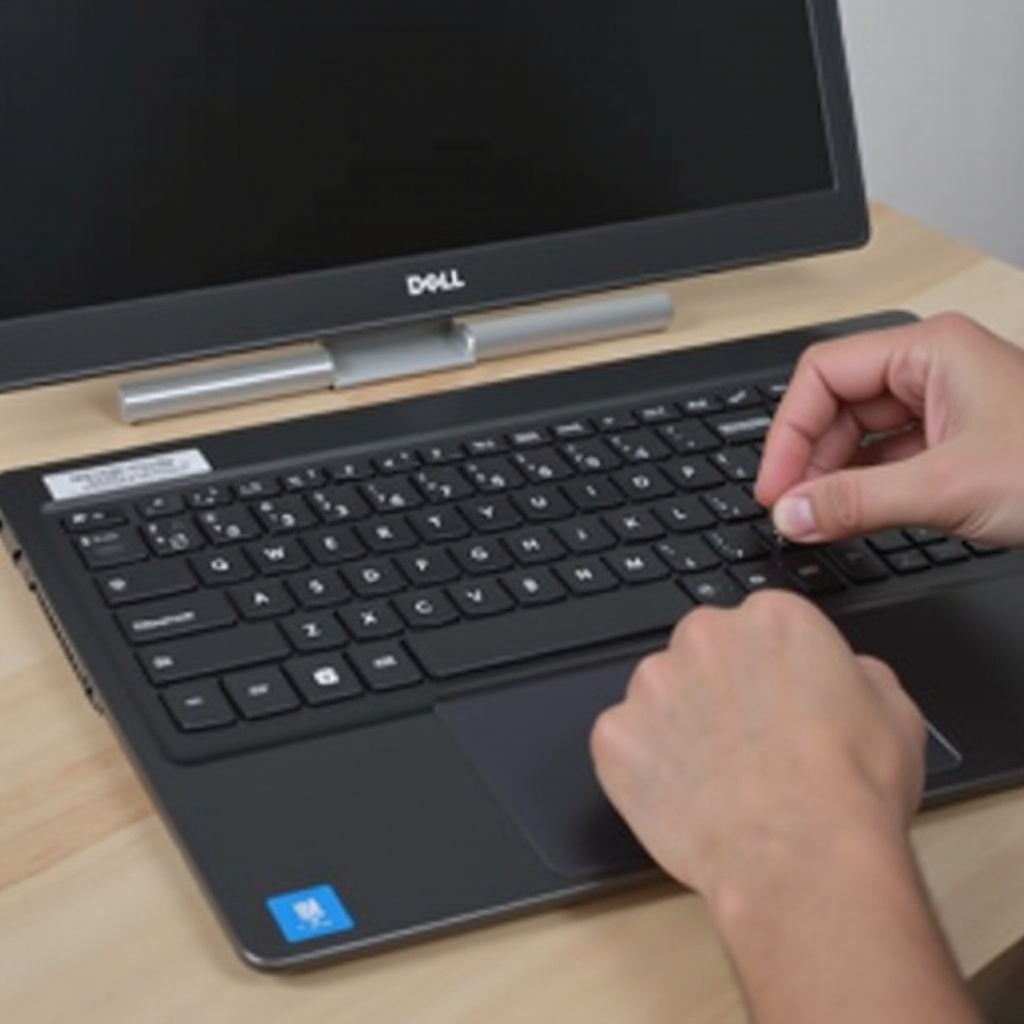
Introduction
The need to remove your laptop’s battery can arise due to various reasons — upgrading to a long-lasting battery, fixing performance issues, or replacing a faulty one. Knowing how to perform this task correctly ensures that your device remains undamaged. We’ll guide you through the steps needed for both built-in and removable batteries, ensuring you can handle your Dell laptop with confidence.
Understanding Dell Laptop Battery Types
To begin, you’ll need to identify your laptop’s battery type. Dell laptops feature either built-in or removable batteries, and the removal process differs for each.
Difference Between Built-in and Removable Batteries
- Built-in Batteries: Typically found in modern, sleek laptops. These are internal and necessitate opening the device’s casing for removal, providing a seamless laptop design.
- Removable Batteries: Accessible from the exterior, removable batteries simplify the process with convenient latches or tabs. Often found in older models, they require minimal technical intervention.
Identifying Your Battery Type and Model
- Check Product Details: Access your user manual or visit the Dell support website to understand your specific battery model and type.
- Examine the Device: Look for external battery latches indicating a removable battery. Built-in batteries will have a solid laptop back without visible seams for removal without tools.
Knowing your laptop’s battery type and model will ease the removal process and help you gather the necessary tools.
Preparing for Battery Removal
Once you have identified your battery type, preparation is key. Ensuring you have what you need will make the removal process seamless and safeguard your laptop from damage.
Tools You’ll Need
- A screwdriver set appropriate for your laptop (usually Phillips and Torx)
- A plastic prying tool to assist in opening the laptop (for built-in batteries)
- A clean, static-free surface to work on, preventing potential static discharge
Safety Precautions
- Backup Data: Regularly save your work and back up any crucial data.
- Power Down: Shut down the laptop and disconnect all power sources and peripherals.
- Prevent Static: Utilize an anti-static wristband if possible, and ensure you’re working on a non-static surface.
Proper preparation ensures that you can remove the battery safely and efficiently, without harming internal components.
Removing a Built-in Dell Laptop Battery
Removing a built-in battery involves careful handling due to the internal residence of these battery types. Each step requires precision to avoid damage to the laptop.
Step 1: Power Down and Unplug the Device
- Turn off the laptop completely.
- Disconnect the power adapter to eliminate any risk of electrical shock.
Step 2: Accessing the Battery Compartment
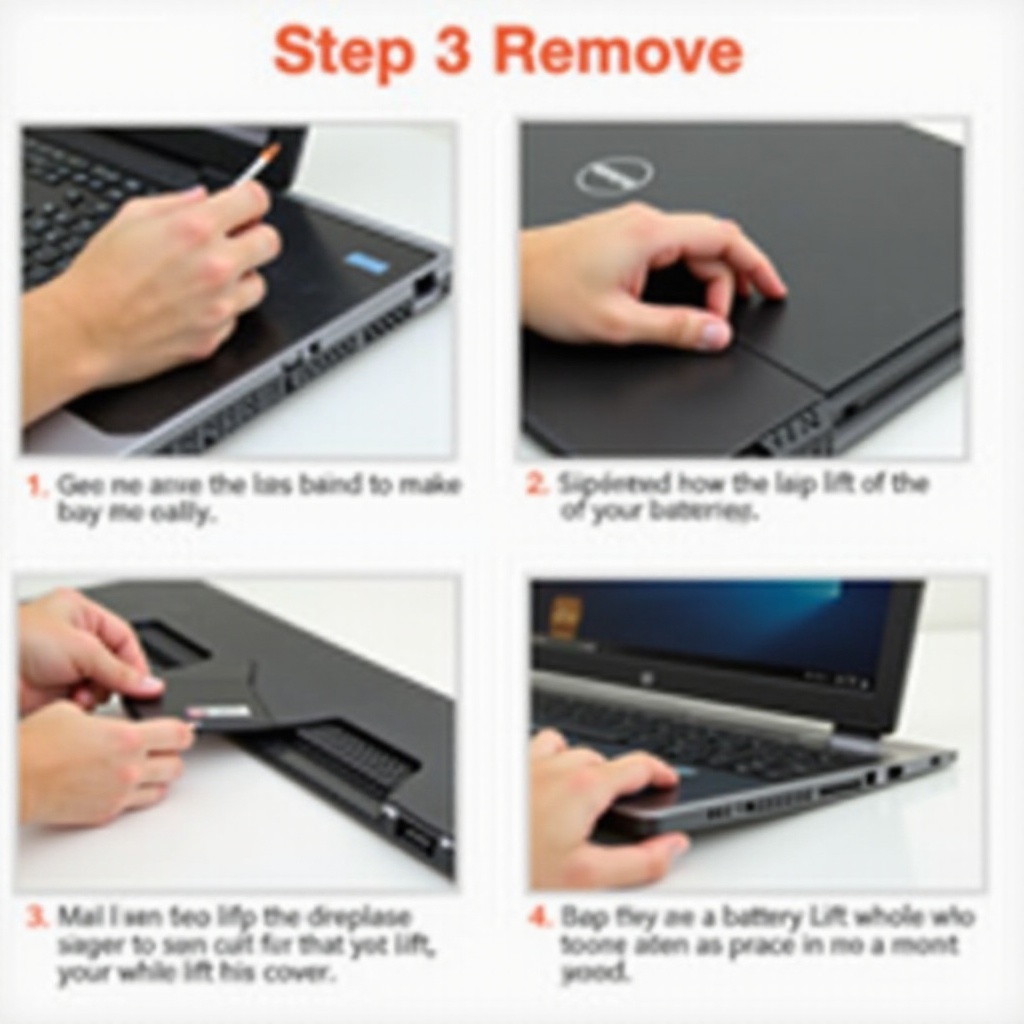
- Unscrew the screws securing the back panel using a suitable screwdriver.
- Gently use a plastic prying tool to lift the back cover, ensuring not to force it too harshly.
Step 3: Disconnecting the Battery Safely
- Identify the battery connector linked to the motherboard.
- Carefully disconnect the connector using a prying tool, ensuring no wires are pulled forcibly.
- Unscrew any securing screws and lift out the battery gently.
Attention to detail in handling these components is crucial to avoid damaging sensitive parts.
Removing a Removable Dell Laptop Battery
Removable batteries offer a straightforward method for those needing quick swaps or less technical handling.
Step-by-Step Guide
- Ensure your laptop is off and unplugged to start the process safely.
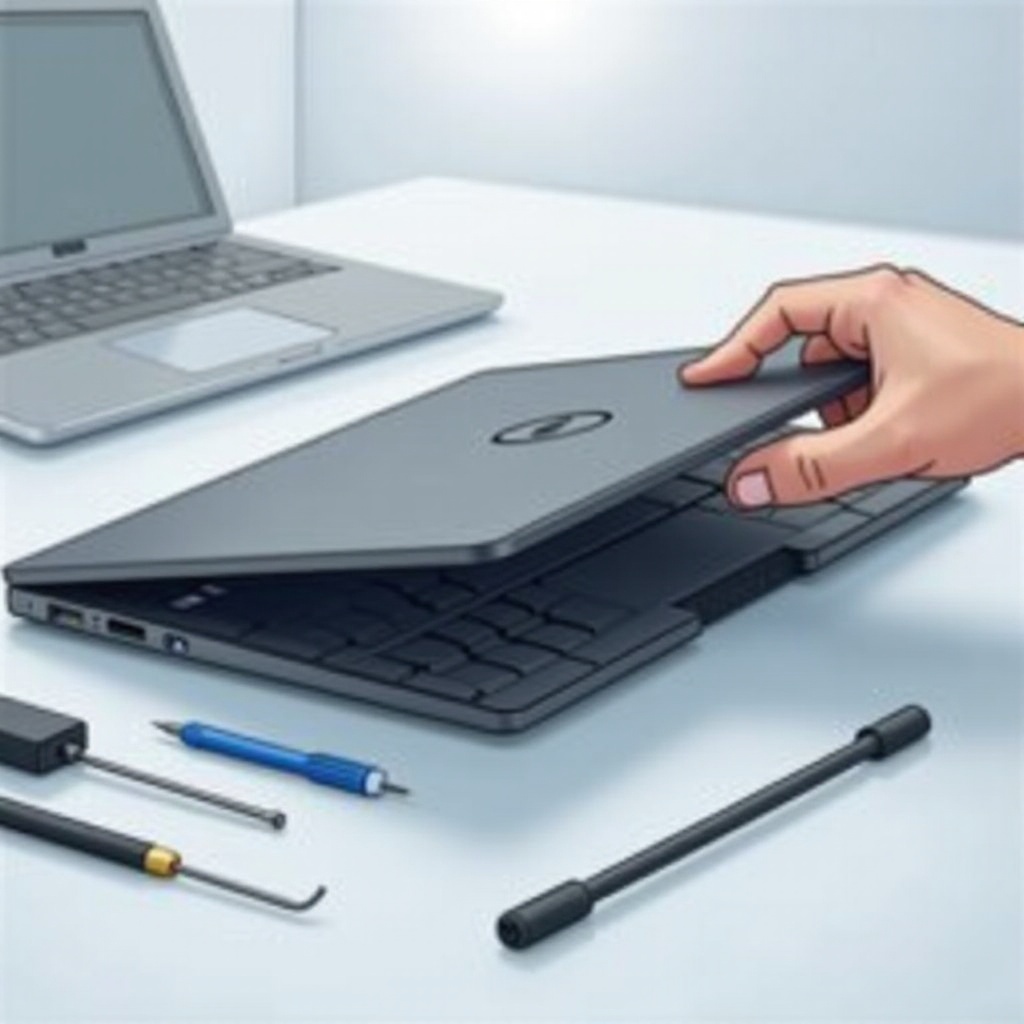
- Flip the laptop and locate the battery latches.
- Slide the latches to release the battery from its compartment.
- Gently pull the battery outward for removal.
Avoiding Common Mistakes
- Check that latches are fully disengaged to prevent any damage.
- Securely grip the battery during removal to avoid accidental drops.
A clear approach will allow you to conduct this task swiftly and without error.
Post-Removal Best Practices
Now that you’ve removed the battery, knowing how to handle it post-removal ensures both your safety and the battery’s longevity.
Storing and Disposing of Battery Properly
- Store: Keep the battery in a temperature-controlled, dry location if you plan to reuse it.
- Dispose: Follow local electronics disposal regulations to recycle or dispose of the battery responsibly.
Reattaching or Replacing the Battery
- Position the battery back into its compartment carefully.
- Secure it with any necessary screws (for built-ins) or ensure proper latch engagement (for removables).
- Replace the back cover if necessary and check all connectors are secured.
Effective storage and proper handling of batteries will extend their life and ensure continued laptop performance.
Troubleshooting Common Issues
Occasionally, problems can arise after battery removal or replacement. Here are some solutions to common issues to maintain your laptop’s operation.
Device Not Starting After Reattachment
- Verify all internal connections are tight and the battery sits correctly in its compartment.
- Ensure the power adapter is properly connected and try booting again.
Battery Storage Concerns
Proper storage conditions are essential in keeping a stored battery ready for future use without degradation.
Conclusion
The process of removing a battery from your Dell laptop, whether built-in or removable, requires careful steps and handling. With this comprehensive guide, you’re equipped to perform this task with ease, ensuring your laptop’s longevity and reliability remain intact.
Frequently Asked Questions
How do I know if my Dell laptop battery needs replacing?
Look for signs such as rapid discharge, failure to charge fully, or overheating—these can indicate the battery may need replacement.
Can I use my Dell laptop without a battery?
Yes, you can use the laptop plugged into an AC adapter, but be aware that a sudden power outage could result in data loss.
What should I do if my laptop doesn’t recognize the new battery?
Ensure the battery is properly seated and the connector is secure. If issues persist, consider running a battery recalibration tool or seeking professional assistance.