
Introduction
Switching from a Samsung phone to an iPhone is an exciting step, but it can make transferring your contacts seem daunting. This is an essential process because your contacts are the bridge to your world, containing all necessary information for personal and professional communication. In this guide, we explore effective methods to smoothly transfer your contacts, making sure you maintain all your connections intact.

Preparing Your Devices
Before diving into the transfer methods, prepare both your Samsung and iPhone to ensure a smooth transition. Start by backing up contacts on your Samsung device. Head over to the Contacts app, select ‘Manage contacts,’ and click ‘Export’ to either your device or Google account. For your iPhone, update to the latest iOS version to guarantee compatibility and optimal performance during the transfer.
Now that everything is set, you can opt for one of the following methods to transfer your contacts smoothly.
Method 1: Using Move to iOS App
One of the most efficient ways to transfer your data is through Apple’s Move to iOS app. This app facilitates easy movement of contacts and other data from Android devices:
1. Install ‘Move to iOS’ from the Google Play Store on your Samsung device.
2. Begin setting up your iPhone until you reach the ‘Apps & Data’ screen, then select ‘Move Data from Android.
3. A ten-digit or six-digit code will appear on your iPhone.
4. Open the Move to iOS app on your Samsung, enter the code, and connect both devices to the same Wi-Fi network.
5. Choose ‘Contacts’ from the list of items to transfer and initiate the process.
Maintain the connection until the process is complete to avoid partial data transfer. If any issues occur, ensure both devices are charged and check for stable Wi-Fi connectivity.
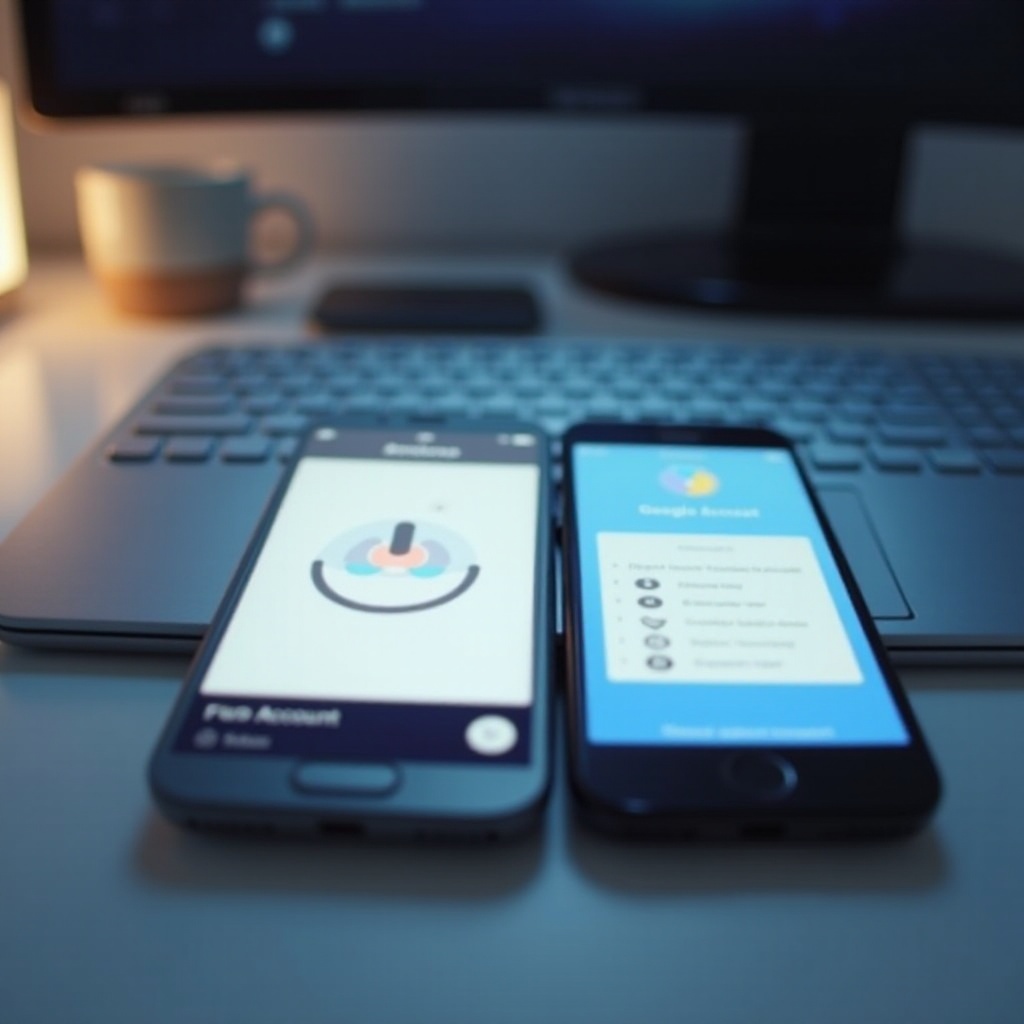
Method 2: Syncing with Google Account
Syncing via Google Account offers another reliable transfer option:
1. On your Samsung, navigate to Settings > Accounts and Backup > Accounts.
2. Add or select your Google account, then tap on ‘Account sync.
3. Make sure ‘Contacts’ is toggled on to initiate synchronization with Google.
4. Switch to your iPhone, go to Settings > Mail > Accounts > Add Account, and select ‘Google.
5. Sign in with the same Google account used on Samsung and enable ‘Contacts’ sync.
This method provides a dynamic solution as your contacts remain updated across devices automatically after the initial transfer.
Method 3: Utilizing Samsung Smart Switch
Samsung Smart Switch is an excellent tool if you’re looking to transfer your contacts using a direct connection:
1. Download Smart Switch on both Samsung and iPhone devices.
2. Launch the app on Samsung, choose ‘Send data,’ while selecting ‘Receive data’ on your iPhone.
3. Select ‘Wireless’ as the connection method for a more straightforward process.
4. From the list of available data, choose ‘Contacts’ for transfer.
Smart Switch is particularly effective if you’re also transferring other data like photos or messages alongside contacts. Should you encounter any glitches, restarting both devices can help clear temporary issues.
Alternative Methods
For those who might face challenges with the above methods, here’s how you can alternatively tackle contact transfer:
– Using VCF Files: Export your contacts to a VCF file on your Samsung. Email this file to yourself, then simply open and import it on your iPhone.
– Third-Party Apps: Explore apps like Copy My Data that offer a user-friendly interface for contact transfers. Verify the app’s credibility through user reviews to ensure secure data movement.
When choosing any method, ensure your data is securely handled and recorded for seamless continuity.
Conclusion
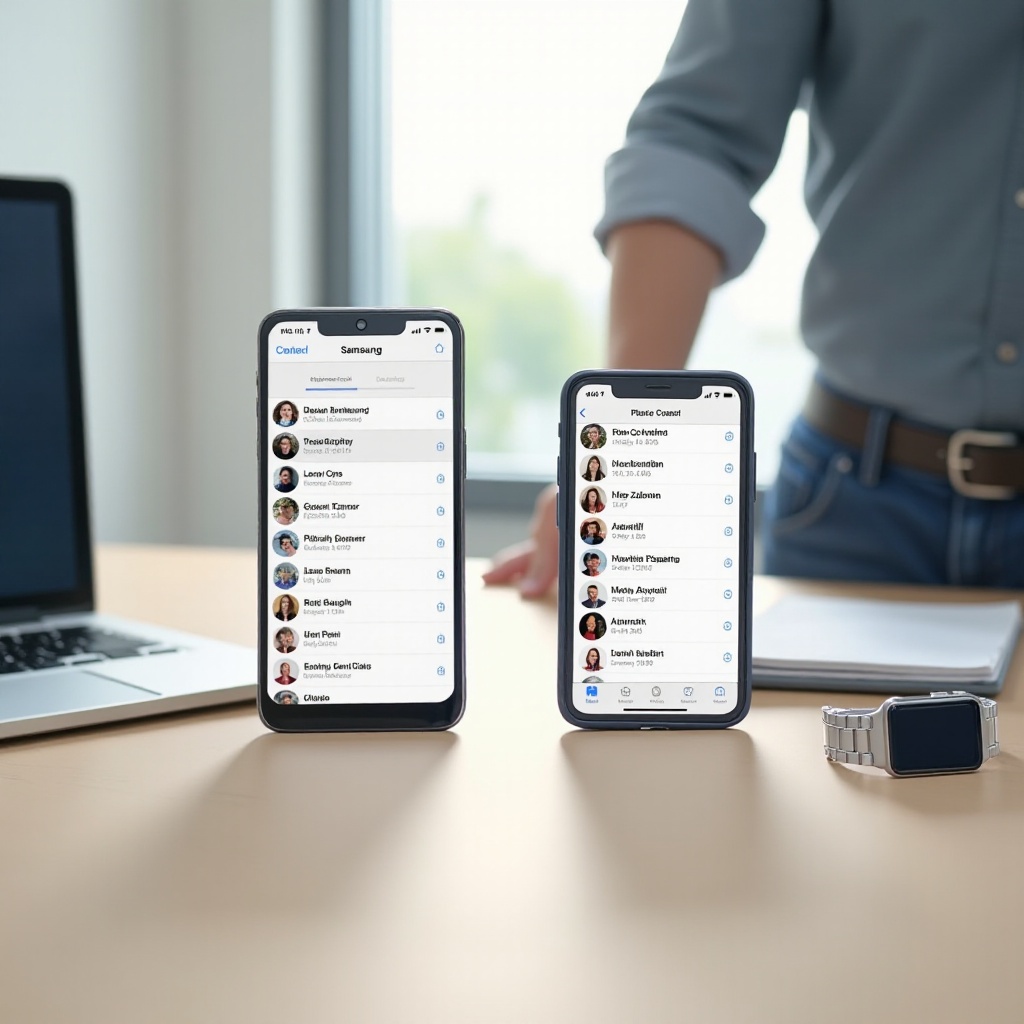
Transferring contacts from Samsung to iPhone doesn’t have to be taxing. You have various user-friendly methods to select from, each providing a practical solution to meet your transition needs. Assess which one fits your comfort level and proceed knowing that all your essential contact information will remain intact.
Frequently Asked Questions
Can I transfer other data along with contacts?
Yes, methods like Move to iOS app and Samsung Smart Switch enable transferring other data like photos, messages, and apps along with contacts.
What should I do if a contact is missing after transfer?
First, verify the sync status on both devices. Ensure the transfer process was not disrupted. If issues persist, consider re-syncing via Google or repeating the chosen transfer method.
Is it possible to transfer contacts without an internet connection?
Yes, using methods like VCF files or a direct cable connection via Smart Switch does not require an internet connection for contact transfer.