
Introduction
Video conferencing has become an essential tool for both professional and personal communication. As more individuals rely on smartphones for their daily interactions, facilitating efficient video calls between iPhones and Android devices has become crucial. Navigating the differences in operating systems and ensuring compatibility can be challenging, but with the right approach and tools, a smooth experience is achievable.

Choosing the Best Video Conferencing Apps for iPhone and Android
Finding the ideal video conferencing app is key to overcoming cross-platform challenges. With numerous options available, focusing on compatibility and user experience is essential.
-
Overview of Cross-Platform Apps: Look for applications that seamlessly operate across both iPhone and Android. Popular choices include Zoom, Microsoft Teams, and Google Meet, each providing robust functionalities.
-
Key Features to Consider: Essential features include ease of use, high-quality video and audio, intuitive screen sharing, and adequate security measures. Additionally, prioritize apps that offer encryption to protect your conversations.
-
Top App Recommendations:
- Zoom: Praised for its reliability and easy-to-navigate interface, Zoom supports both iPhone and Android devices effectively.
- Google Meet: Ideal for users within the Google ecosystem, offering seamless integration with other Google services.
- Microsoft Teams: A robust option for professional environments, it provides comprehensive collaboration tools in addition to video conferencing.
Selecting the right app sets the stage for a successful video call, but optimizing the device setup is equally important. Next, we delve into configuring iPhones for video conferencing.
Setting Up Video Conferencing on iPhone
iPhones, known for their user-friendly design, offer a straightforward setup for video conferencing apps. Here’s a simple guide:
- Step-by-Step Installation Guide:
- Visit the App Store and search for your chosen video conferencing app, such as Zoom or Google Meet.
- Tap ‘Download’ to install it on your device.
-
Open the app, then follow the on-screen instructions to create an account or log in.
-
Maximizing App Features: To ensure optimal performance, familiarize yourself with the app’s settings. Enable notifications for meeting invites, and adjust your microphone and camera settings to be ready for calls.
With your iPhone set up, ensuring your Android device is ready is the next step for seamless cross-device communication.
Setting Up Video Conferencing on Android
Android devices, varying slightly by manufacturer, require a similar setup process to iPhones for video conferencing apps:
- Step-by-Step Installation Guide:
- Open Google Play Store and search for the desired video conferencing app.
- Select ‘Install’ to download the app onto your Android device.
-
Launch the app, then create an account or log in as prompted.
-
Maximizing App Features: Explore settings such as video quality preferences, notification alerts, and compatibility with other apps to enhance your conferencing experience.
With both devices configured, it’s crucial to focus on optimizing the network and settings for an excellent video call performance.
Optimizing Your Video Call Experience
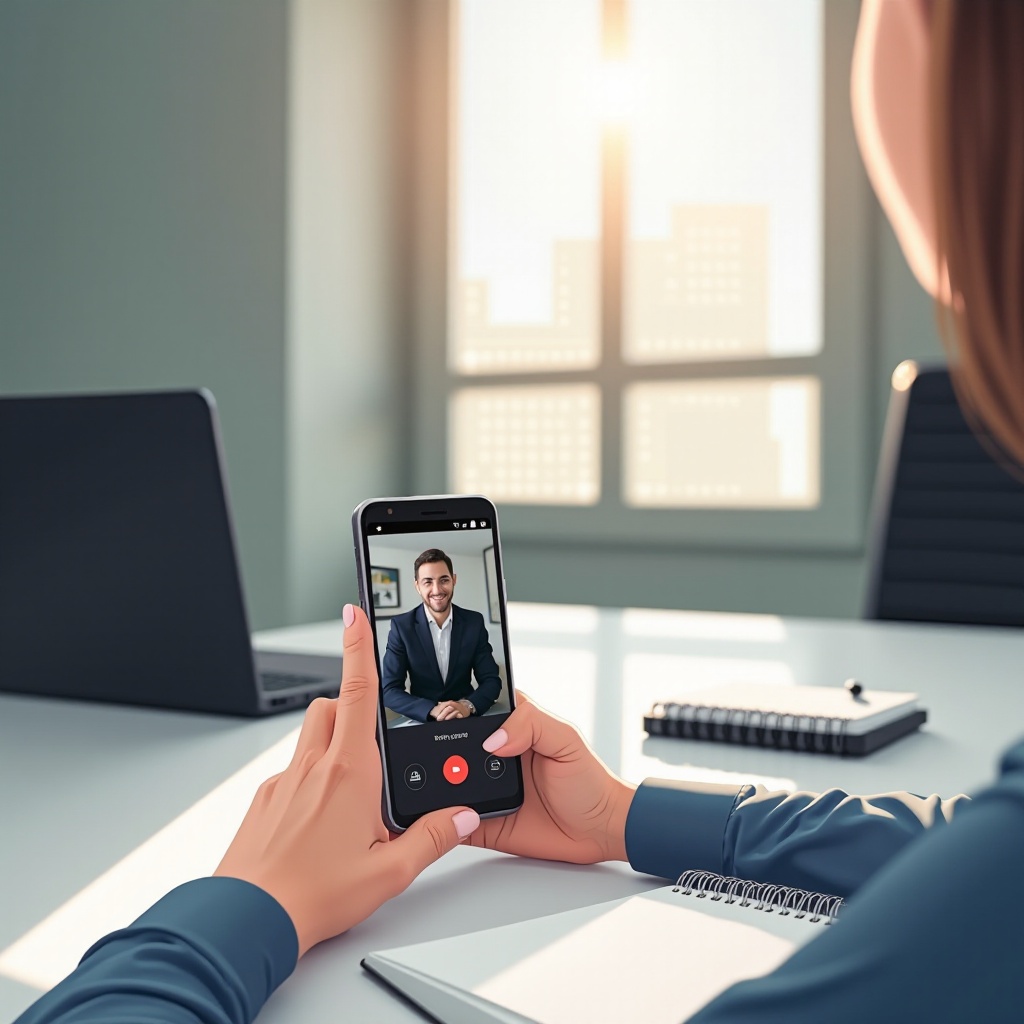
Ensuring a high-quality video call involves both technical adjustments and practical steps to maintain connectivity:
-
Connectivity and Network Tips: Opt for a robust Wi-Fi connection instead of mobile data to prevent interruptions. Reduce network congestion by closing unnecessary applications and limiting other device connections during the call.
-
Improving Audio and Video Quality: Position yourself in a well-lit room to enhance clarity for video calls. Utilize headphones equipped with a microphone to improve audio clarity and prevent feedback issues.
-
Common Troubleshooting Tips: In case of issues, common solutions include restarting your device, clearing the app cache, or updating the app to the latest version to resolve bugs or glitches.
Achieving optimal quality is just one part of the equation; maintaining security during video conferences is also crucial.
Ensuring Security and Privacy in Video Calls
Safeguarding your privacy during video conferencing is vital, whether it’s for business dealings or personal chats. Here are some strategies to ensure security:
-
Data Protection Strategies: Choose apps with end-to-end encryption to safeguard your data. Regularly update both your device and apps to fix security vulnerabilities.
-
Safe Usage Tips for iPhone and Android: Use strong passwords and avoid sharing meeting links publicly. Understand the security settings of your app to use features like waiting rooms and password protection for meetings.
By adhering to these security measures, you can protect your conversations. Let’s summarize everything we’ve covered so far.
Conclusion
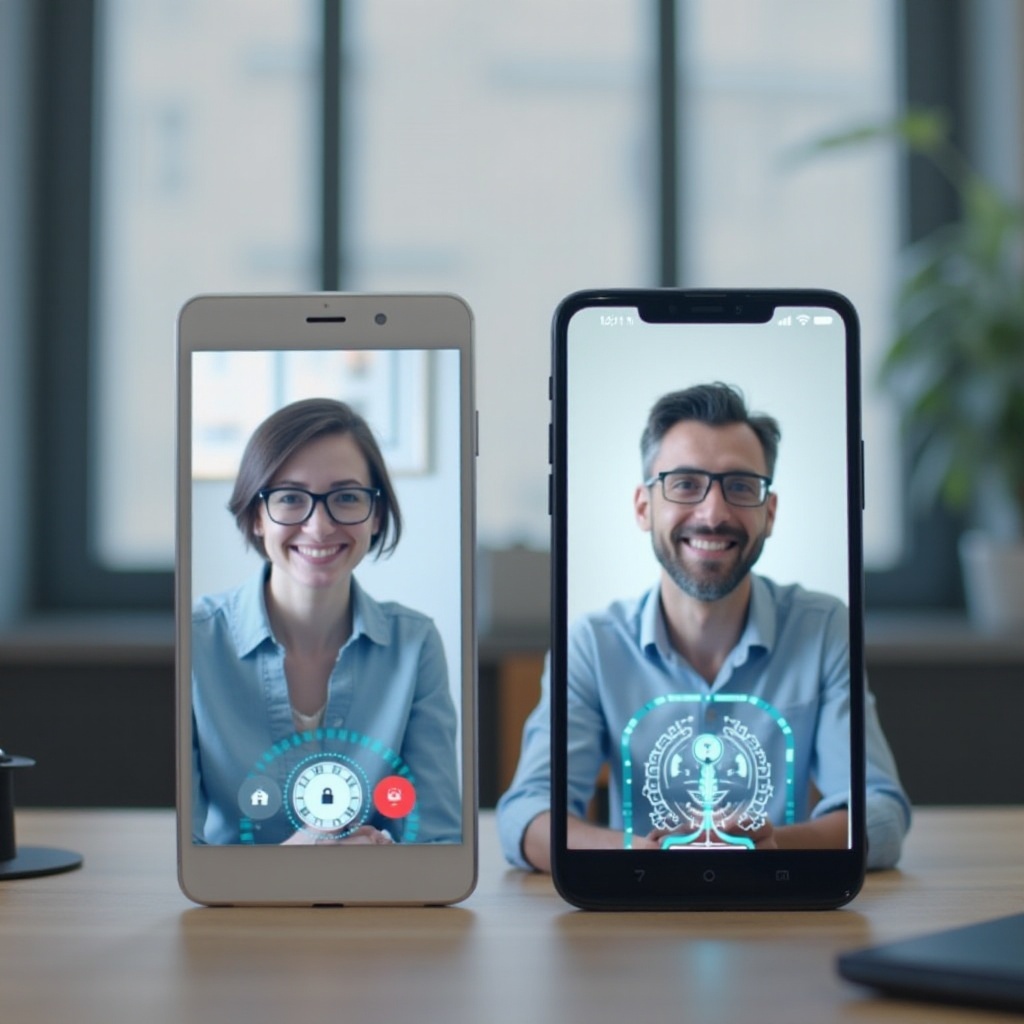
Video conferencing between iPhone and Android devices can be streamlined by selecting the right applications and setting up devices correctly. By optimizing network conditions and adhering to security best practices, you ensure not only effective but also safe communication across platforms. Proper preparation ensures that your video calls are engaging and uninterrupted.
Frequently Asked Questions
How do I ensure a stable connection during a video call?
Use a strong Wi-Fi network and minimize bandwidth usage by closing unnecessary apps.
What are the most secure apps for video conferencing?
Zoom, Google Meet, and Microsoft Teams offer robust security features, including end-to-end encryption.
Can I record my video conferences on iPhone and Android?
Yes, most apps provide in-app recording features. Check your app’s settings for recording options.