
Introduction
When your AirPods won’t connect to your Samsung TV, the experience can be frustrating. Understanding the root causes can help you address these issues more effectively. AirPods provide seamless audio connectivity in Apple’s ecosystem, but challenges arise when pairing them with devices like Samsung TVs due to potential compatibility and configuration issues. Let this guide walk you through the reasons behind these problems and, more importantly, how to fix them.
Understanding the Compatibility Between AirPods and Samsung TV
Before diving into solutions, grasping the compatibility between AirPods and Samsung TVs is crucial. AirPods rely on Bluetooth technology and can connect to most Bluetooth-enabled devices, including Samsung TVs. However, not all Samsung TV models are equipped with built-in Bluetooth, and even those that are might feature different versions that affect connectivity.
Knowing your Samsung TV’s Bluetooth capabilities and version can be instrumental in troubleshooting connection issues. Refer to your TV’s user manual or search online to ensure your TV supports Bluetooth and is compatible with AirPods.
Preparing Your Devices for Connection
To have a successful connection, it’s essential to properly prepare your devices. Here’s how:
-
Ensuring AirPods and Samsung TV Are Ready: Start by fully charging your AirPods to prevent unexpected disconnections. Confirm that your Samsung TV is powered on and ready to pair.
-
Checking for Software Updates: Outdated software commonly leads to connectivity hiccups. Check for any firmware updates for your Samsung TV in the settings menu. Likewise, ensure your AirPods are up-to-date by connecting them to an Apple device and checking for updates in the device settings.
Step-by-Step Guide to Connect AirPods to Samsung TV
With your devices properly prepared, follow these steps to connect your AirPods to your Samsung TV:
-
Setting AirPods to Pairing Mode: Start by pressing and holding the button on the back of your AirPods case until you see the LED light flash white. This indicates they are in pairing mode.
-
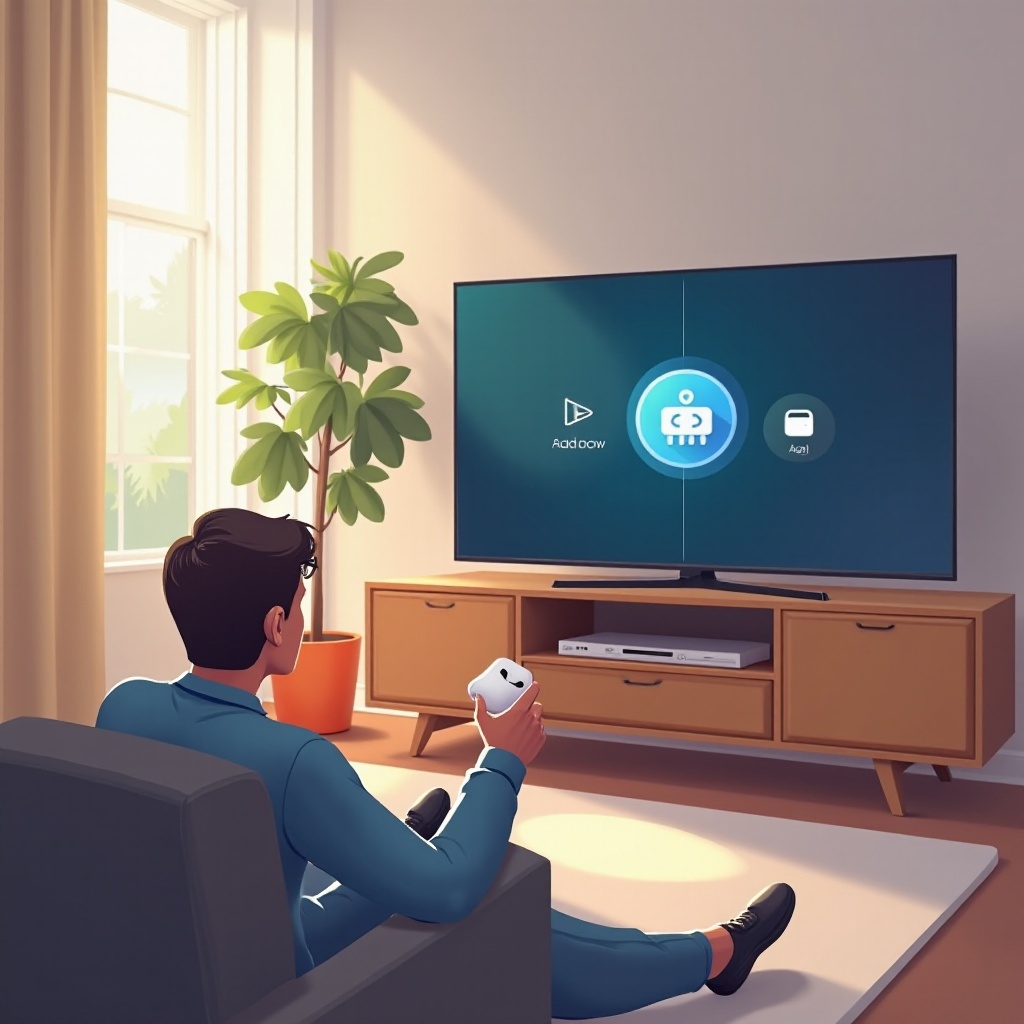
Accessing Bluetooth Settings on Samsung TV: Use your Samsung TV remote to navigate to Settings > Sound > Sound Output > Bluetooth Speaker List. Keep in mind that this path might slightly differ with different models.
-
Completing the Bluetooth Pairing Process: As your TV searches for available Bluetooth devices, select your AirPods from the list and follow any additional on-screen instructions to complete pairing.
Troubleshooting Common Connectivity Issues
Despite completing the steps, you may still encounter problems. Here are common connectivity issues and how to troubleshoot them:
-
Resolving Bluetooth Interference: To minimize interference, ensure no other Bluetooth devices nearby are attempting to connect. Switching off unused devices can help.
-
Resetting AirPods and Samsung TV’s Network Settings: Occasionally, a reset of both the AirPods and TV’s Bluetooth settings can resolve issues. To reset AirPods, hold the setup button until the light turns amber, then flashes white. For your TV’s Bluetooth, find and select ‘Reset Network Settings’ or equivalent in the settings menu.
-
Addressing Firmware and Update Problems: Make sure there are no pending updates that could interfere with connectivity. Keeping the devices updated prevents a host of potential issues.
Exploring Alternative Solutions
If troubleshooting hasn’t resolved the problem, here are some alternative solutions to consider:
-
Using Third-Party Bluetooth Transmitters: If your Samsung TV either lacks Bluetooth support or doesn’t have a compatible Bluetooth version, a Bluetooth transmitter can bridge the gap. Connect it to your TV’s audio output to facilitate connection with your AirPods.
-
Considering Other Wireless Headphones: Occasionally, it helps to test with an alternative set of wireless headphones to determine if the connection problem is specific to AirPods or if a broader issue exists with the TV.
Conclusion
Connecting AirPods to a Samsung TV can pose challenges, but proper preparation and troubleshooting make it quite manageable. Ensuring device compatibility and regular firmware updates can prevent and resolve many connectivity issues. If problems persist, third-party devices or alternative headphones offer practical solutions. We hope this guide has proven useful, and we invite you to share your experiences or additional tips.
Frequently Asked Questions
Why won’t my AirPods connect to my Samsung TV?
Various factors such as compatibility issues, outdated firmware, or interference from other devices can prevent AirPods from connecting. Follow our troubleshooting guide above for solutions.
Can I use other wireless headphones with my Samsung TV?
Yes, most Samsung TVs with Bluetooth support can connect to a wide range of wireless headphones, though compatibility varies by model and headphone brand.
What should I do if my AirPods keep disconnecting from my TV?
Frequent disconnections can result from low battery, interference, or outdated software. Ensure both devices are updated, fully charged, and minimize nearby Bluetooth signals to maintain stable connectivity.