
Introduction
Connecting your Sylvania Bluetooth speaker doesn’t have to be complicated. This guide provides clear instructions to help you pair your speaker with various devices effortlessly. Whether you’re a tech expert or a beginner, you will find these steps easy to follow, ensuring that your favorite tunes are just a connection away.
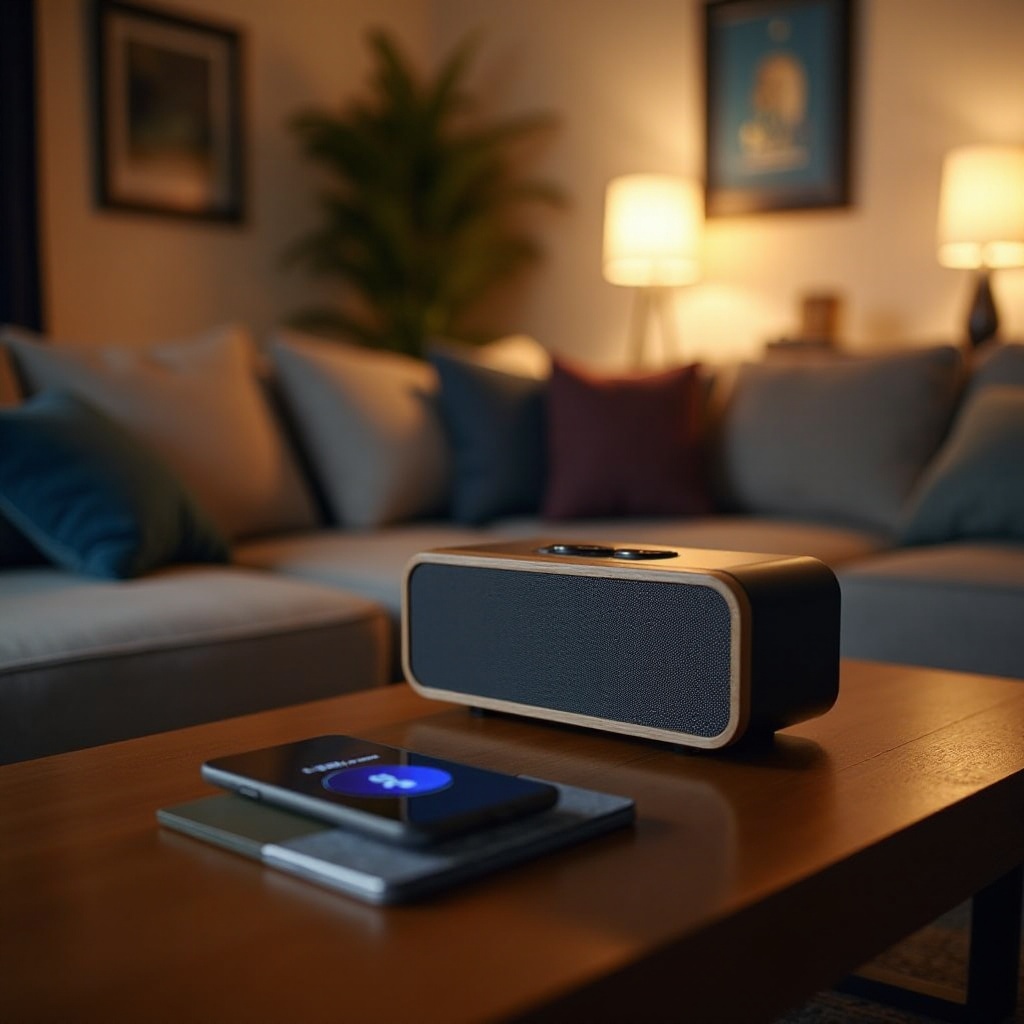
Understanding Your Sylvania Bluetooth Speaker
Before you begin, familiarize yourself with the key features of your Sylvania Bluetooth speaker. This knowledge will empower you to connect your devices with ease and troubleshoot any issues that may arise.
Key Features of Sylvania Bluetooth Speakers
Your Sylvania Bluetooth speaker typically includes a power button, a Bluetooth pairing button, volume controls, and an LED indicator. These elements are designed for intuitive use, ensuring a seamless setup process. Knowing these features well aids in efficient pairing.
Preparing for Connection
Ensure your Sylvania speaker is fully charged and near the device you want to connect. Confirm that Bluetooth is enabled on your external device to streamline the pairing process.
Step-by-Step Guide to Connecting Your Device
Connecting your Sylvania Bluetooth speaker to your device is straightforward when you follow these detailed instructions.
Activating Bluetooth Mode on Your Speaker
- Press the power button to turn on your Sylvania Bluetooth speaker. The LED indicator should light up to confirm it’s powered on.
- Press the Bluetooth button until the LED begins flashing. This signals that your speaker is ready to be paired.
Pairing with a Smartphone
- Navigate to the Settings menu on your smartphone and select Bluetooth settings.
- Ensure Bluetooth is turned on and search for available devices.
- Choose the Sylvania speaker from the list of devices, which might appear as ‘Sylvania Speaker’ or a similar name.
- Confirm any pairing requests if prompted. Once connected, the LED on your speaker will stop flashing, indicating a successful pairing.
Connecting to a Laptop or Tablet
- Access the Bluetooth settings on your laptop or tablet.
- Enable Bluetooth, then search for available devices.
- Select your Sylvania speaker from the list and confirm any on-screen prompts. The LED will stabilize when the connection is complete.
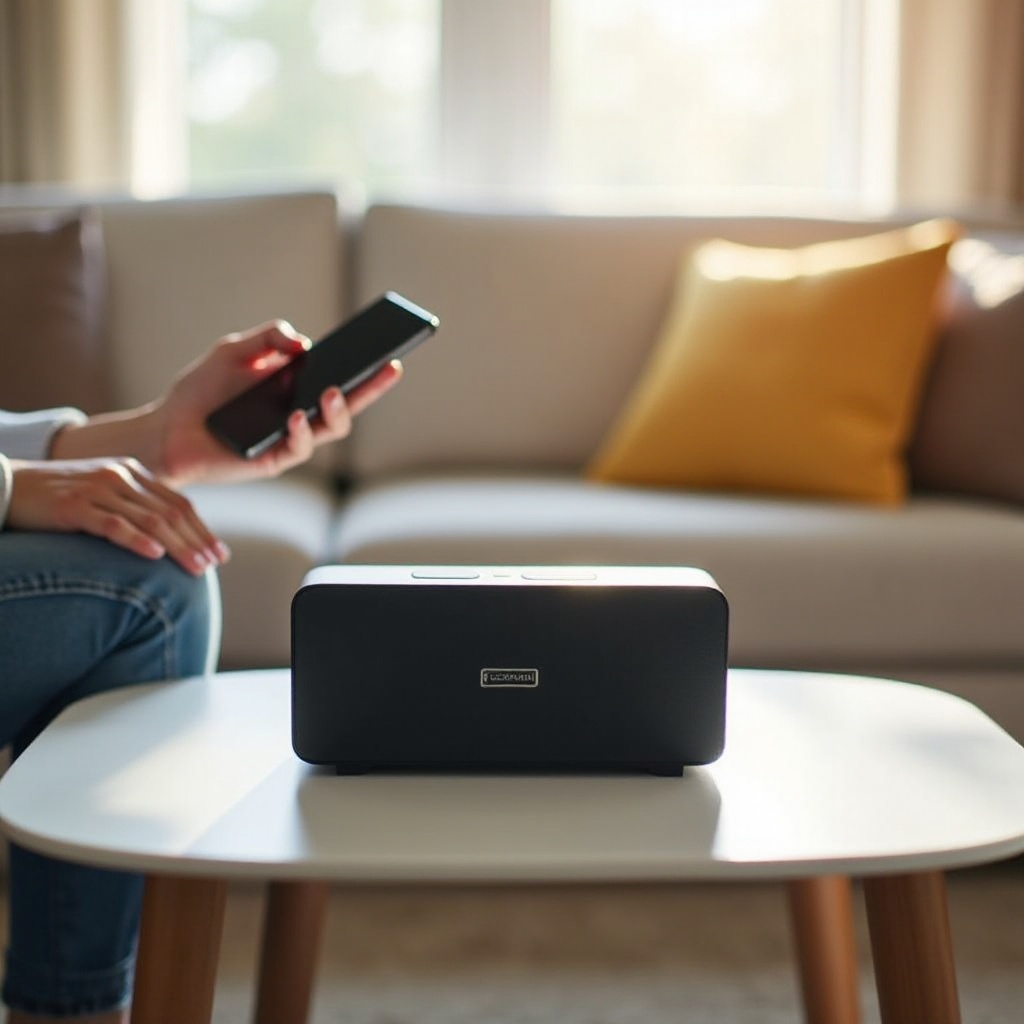
Troubleshooting Common Connectivity Issues
Should you encounter any connectivity problems, here are some effective solutions:
Speaker Not Discoverable
- Restart both your speaker and the device you want to pair to refresh their connection capabilities.
- Ensure your speaker is in pairing mode, indicated by a flashing LED light.
- Bring your devices closer and eliminate any physical obstructions that may impede pairing.
Frequent Disconnections
- Examine your device’s Bluetooth settings for possible interference or conflicting connections.
- Charge your speaker fully, as low power can affect connectivity.
- Update your device’s software since outdated systems can lead to compatibility issues.
Poor Sound Quality
- Keep both the speaker and the connecting device within the recommended range, usually around 10 meters.
- Close any apps on your device that may be using Bluetooth simultaneously to minimize interference.
- Make sure your music player or streaming app is up to date for optimal audio performance.
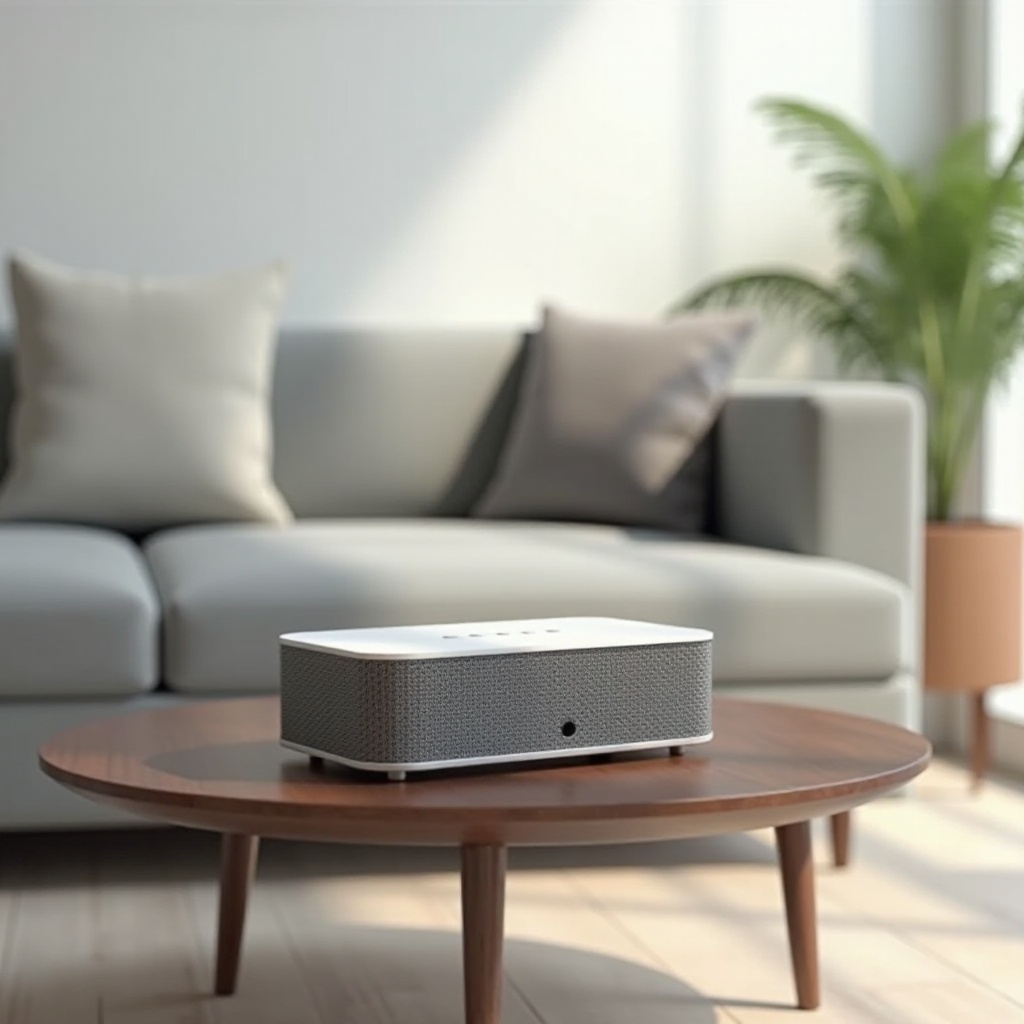
Tips for Optimizing Your Audio Experience
Once connected, maximize your Sylvania Bluetooth speaker’s potential with these optimization tips:
Optimal Speaker Placement
- Position your speaker at ear level for superior sound distribution.
- Avoid placing the speaker in corners to prevent audio distortion.
- Ensure the speaker rests on stable surfaces to reduce vibrations and improve sound clarity.
Adjusting Sound Settings
- Customize your device’s equalizer settings to match your listening preferences.
- Utilize apps that integrate well with Bluetooth devices to ensure smooth playback.
- Balance the volume controls between your speaker and the connected device to achieve ideal audio levels.
Enhancing Battery Life
- Charge your speaker before it gets completely drained to extend battery longevity.
- Keep your speaker away from extreme temperatures, which can degrade battery health over time.
- Turn off your speaker when it’s not in use to conserve energy effectively.
Conclusion
Connecting your Sylvania Bluetooth speaker is a simple process when you understand its features and follow the right steps. This guide empowers you to enjoy seamless audio experiences and high-quality sound. Remember to refer back to this guide for troubleshooting tips if issues arise.
Frequently Asked Questions
Can I connect multiple devices to my Sylvania Bluetooth speaker at the same time?
Yes, multiple devices can be paired, but only one can stream audio at any given time. To switch, disconnect the current device.
Why is my Sylvania speaker not pairing with my device?
Ensure the speaker is in pairing mode, indicated by a flashing LED, and check the Bluetooth settings on your device.
How do I reset my Sylvania Bluetooth speaker?
To reset, turn off the speaker and hold the power button for 10 seconds. This will restore factory settings.